Building my first PC
Published on July 25, 2026
Notes on the home lab I’m planning to build out.
Current setup
Before getting into the lab plan, here’s what I’m actually using day to day right now:
- Laptop: HP Omen Max 2025 — Intel Core Ultra 9 275HX, RTX 5080
- Monitor: ASUS 27” 5K (PA27JCV — double-check this model code)
- Mouse: Logitech M650L
- Keyboard: Dell basic office keyboard — does the job, but it has a numpad and I’d prefer a tenkeyless board; the extra width just pushes the mouse further out than I’d like.
The plan
After lots and lots of consideration, I’ve settled on the MS-02 Ultra platform.
The route here was not short. I started out leaning towards the AI X1 Pro 470 on performance-per-dollar grounds, then moved to the MS-A2 for the stronger, more gracefully-ageing CPU. What pulled me to the MS-02 in the end is the I/O, and specifically one number: it exposes PCIe 5.0 x16 lanes.
That changes the whole shape of the build. With a Gen5 MCIO riser card I can connect an external GPU at its native bandwidth — not a x4 link with a card hanging off the end of it, but the same lane count and generation the card would get sitting in a desktop motherboard. This is so cool. The usual mini-PC eGPU compromise just… isn’t there.
Minisforum publish the platform documentation openly, including the lane block diagram:
Worth reading properly rather than skimming. It lays out exactly which lanes come off the CPU and which come off the chipset, and it still talks in northbridge / southbridge terms — which is a lovely thing to see written down in 2026, and makes the topology much easier to reason about when you’re deciding what to plug where.
On CPU, it comes down to budget: either the 235HX or the 285HX from the Core Ultra HX line. Both give me the x16 slot, which was the point of the exercise; the 285HX gives more cores on top. One difference worth catching before ordering — per the block diagram, the Intel E810 25GbE NIC is on the 285HX version only, hanging off CPU-direct lanes. If that matters to you, it’s not a budget call any more.
The nice part about a mini PC + eGPU setup is that the two halves upgrade independently. The compute box stays the same while the GPU on the other end of the cable can be swapped whenever something better (or cheaper) shows up.
One thing to go in with eyes open about: Minisforum typically ships around two BIOS updates for a machine and then stops. After that there’s no further firmware support, so if something breaks at that level — a bad flash, a bug that never gets patched, a hardware quirk that needed a microcode fix — I’m out of luck. That’s the trade for buying from a smaller vendor instead of a tier-one OEM with a long support tail. Worth knowing before, not after.
Reading the block diagram
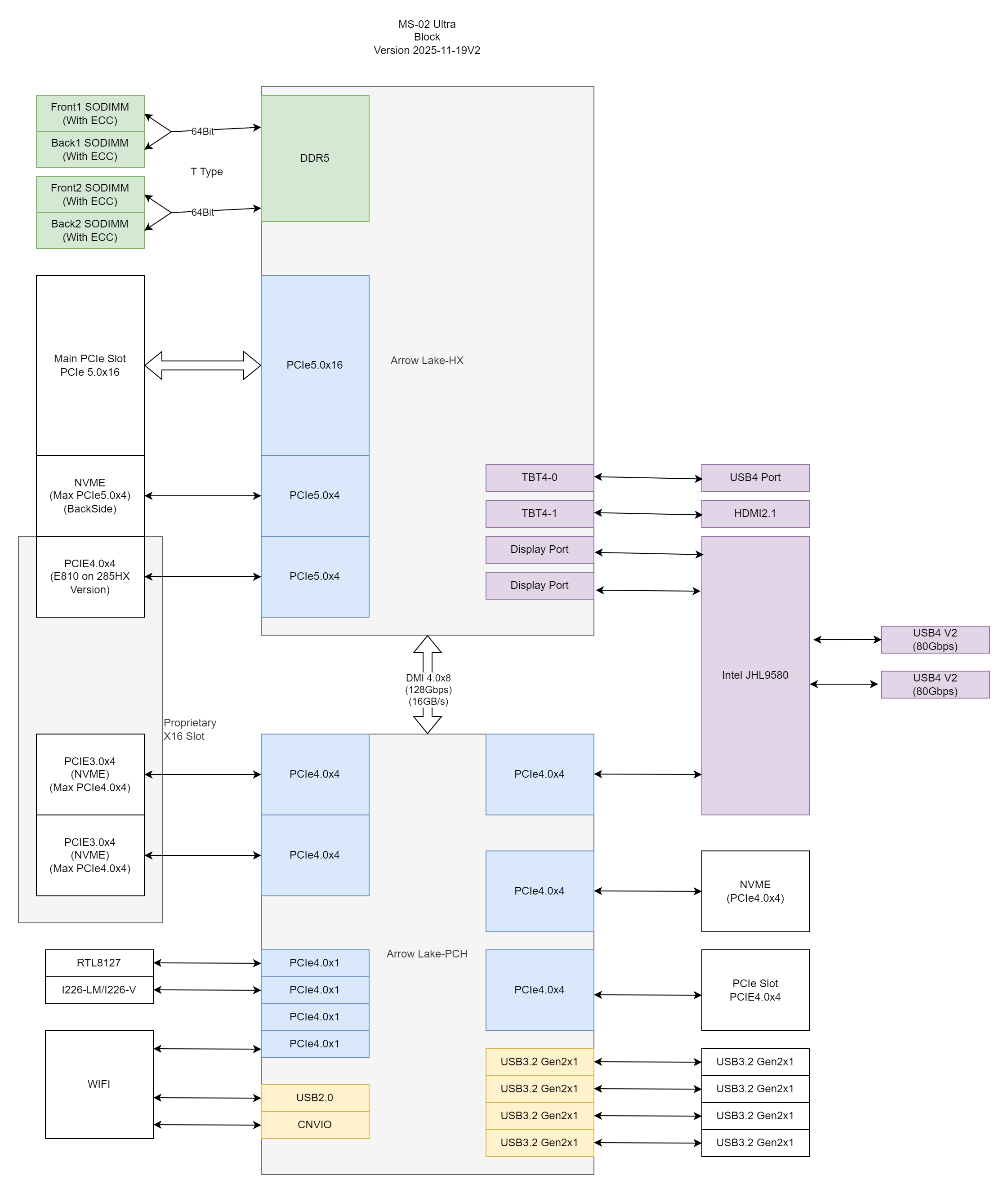
Source: minisforum-docs/MS-02-Ultra.
This is the thing that sold me, so it’s worth walking through.
The bottom block is the PCH — Platform Controller Hub. It’s a second chip on the motherboard that sits next to the CPU and handles all the slower I/O so the CPU doesn’t have to. Think of the architecture as two tiers.
The CPU (Arrow Lake-HX, the top block) has a limited number of PCIe lanes coming directly out of its silicon. Those are precious — lowest latency, full bandwidth, no sharing. So they’re spent only on things that genuinely need them: the x16 GPU slot, one fast NVMe, the 25GbE NIC, memory, and Thunderbolt.
The PCH (the bottom block) is essentially an I/O expander chip. It fans out into many more connections — extra PCIe 4.0 lanes for more NVMe slots and the secondary PCIe slot, the 10GbE and 2.5GbE ethernet controllers, WiFi, all the USB ports, SATA if present, audio, and so on. Physically it’s that second large chip you’d see on the board under a small heatsink.
The catch: DMI
The catch is how the PCH talks to the CPU: through a single link called DMI (Direct Media Interface) — that double-arrow in the middle of the diagram. On this platform it’s DMI 4.0 x8, which is electrically just a PCIe 4.0 x8 connection, ≈ 16 GB/s each way. Every device attached to the PCH — the PCH-side NVMe slots, both ethernet controllers, the USB4 v2 chip, every USB port — funnels through that one pipe to reach the CPU and RAM.
So “hanging off that shared 16 GB/s” means: individually, each PCH device still gets its stated bandwidth (a Gen4 x4 NVMe does its ~7 GB/s just fine), but collectively they can’t exceed 16 GB/s at the same moment. Two fast NVMe drives copying to each other, plus 10GbE traffic, plus USB storage all at once will start contending — while the GPU on the CPU-direct x16 slot is completely unaffected.
That last clause is the whole reason I’m here. The GPU doesn’t share with anything.
Historical footnote
Since I like OS internals: the PCH is the descendant of the old northbridge/southbridge pair. The northbridge (memory controller, PCIe/AGP) got absorbed into the CPU die around Nehalem (2008); the southbridge survived as this standalone chip, renamed PCH. AMD’s equivalent is just called the “chipset” (X870, B650…), connected by an analogous link they call the chipset uplink — same tiered idea, same shared-uplink bottleneck.
Connecting the GPU
The build guide I’m following for the MS-02 eGPU connection:
- MS-02 Ultra eGPU build walkthrough
- Full assembly guide — start to finish
- r/MiniPCs — MS-02 Ultra with full-height cards — people actually running full-size GPUs off this box
If you have doubts about any of this, u/egnegn1 has been the most helpful person I’ve come across on this build — worth reaching out.
No illusions about what this looks like when it’s done: it’ll probably be an open-shell setup — the GPU sitting out on a bench or a frame with the riser cable running back into the mini PC, rather than anything that resembles a tidy appliance. That’s the cost of native bandwidth on a machine this size. I’m fine with it; the thing lives on a desk next to me, not in a living room.
For comparison, the OCuLink route I was previously planning gives PCIe 4.0 x4 — genuinely fine for inference and kernel work, and a fraction of the hassle:
But once the platform hands you Gen5 x16 for the price of a riser, taking the x4 link starts to feel like paying for a capability and then declining to use it.
How the interconnects actually compare
It’s easy to lose track of which of these cables is fast, so here they are side by side:
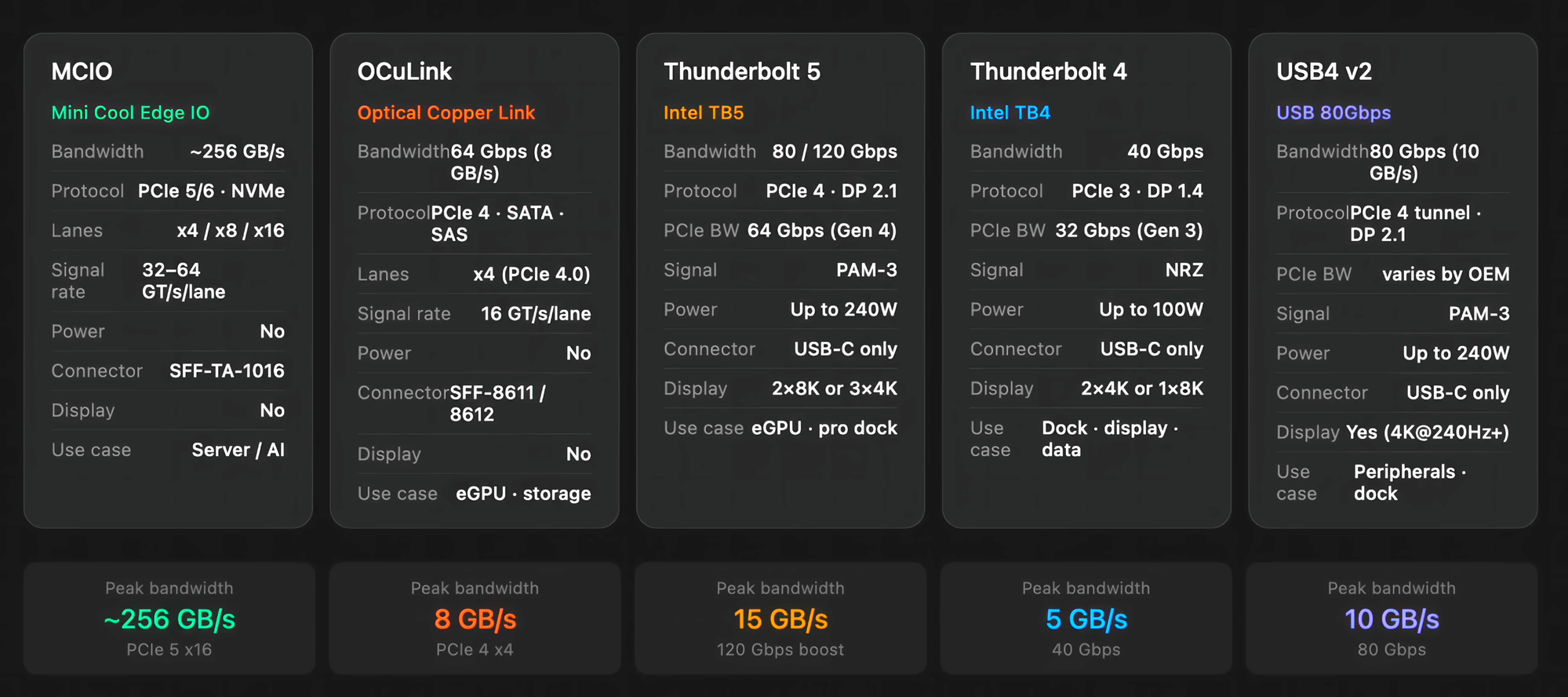
The ordering is the point. MCIO is in a different class entirely — it’s the only one here that carries a full x16 link, which is exactly why it’s the server and AI-accelerator interconnect rather than a laptop dock standard. Everything to the right of it is a x4-or-narrower tunnel wearing different branding.
Two things to keep in mind when reading those numbers:
- The peak-bandwidth row is raw link rate, not usable PCIe throughput. Thunderbolt 5 markets 120 Gbps, but its actual PCIe tunnel is 64 Gbps (Gen4) — the rest is display bandwidth. USB4 v2 is worse to reason about, since how much PCIe you get “varies by OEM.”
- The MCIO figure assumes PCIe 6.0. That column covers PCIe 5 and 6, and ~256 GB/s is a Gen6 x16 bidirectional number. On this build — Gen5 x16 — the real figure is closer to ~63 GB/s per direction, which is still roughly eight times what OCuLink gives me and about four times a Thunderbolt 5 PCIe tunnel.
Even after deflating the headline number, the gap is the whole argument for going this route.
The clean version of this idea
While researching, I found that some machines solve this properly by exposing the lanes as an external MCIO 8i port — no riser card threaded out through a chassis opening, just a port on the back panel that a cable plugs into. The GPD Box is what made this click for me; that whole approach is built around an MCIO 8i cable rather than fishing a riser out through a gap in the case.
That’s clearly where this form factor is heading, and it’s what I’d want if I were buying purely on elegance. The MS-02 route gets me the same bandwidth today with an uglier cable path, which is the trade I’m making.
What I already have
This is where the cost math works out. I already have lying around:
- 2 × 16 GB SODIMM laptop RAM — 32 GB total, and SODIMM is the form factor the MS-02 takes. It has four slots, so there’s room to double this later without throwing anything away.
- 1 TB SN-series Gen4 NVMe drive — fast enough that I won’t be waiting on disk when loading model weights.
So the barebones purchase covers the motherboard, CPU and chassis, and my existing parts fill in the memory and storage. That knocks a meaningful chunk off the total, and none of it is a compromise — this is the RAM and SSD I’d have bought anyway.
The GPU
The last piece is the card itself. What I want it for:
- Running local LLMs — inference, quantized models, trying out serving stacks.
- CUDA experiments: writing kernels, profiling, understanding what the hardware actually does.
- Small-scale training and fine-tuning runs.
The plan is to pick up a refurbished 5070 Ti or 5080 and ship it in from the US, and nothing above that. Given where GPU prices are right now, the next rung up costs more than the entire rest of the build and I’d still be VRAM-limited for anything genuinely large. Refurbished is where the value is — for workloads that are mostly about learning rather than uptime, a refurb card is a perfectly reasonable risk.
Between the two, the 5070 Ti is the better buy on paper: both cards land at 16 GB of VRAM, so the 5080 mostly buys raw throughput rather than headroom for bigger models. Since VRAM is the binding constraint for the LLM side, the extra spend doesn’t move the ceiling on what I can actually run.
The low-profile alternative
There’s a version of this build where the card goes inside the chassis instead of on the end of a cable, which means living within low-profile constraints. Two options worth knowing about:
- RTX PRO 4000 SFF (small form factor, 24 GB) — genuinely decent, and 24 GB is more VRAM than either card I’m actually planning to buy. The workstation tax is the catch: you pay a lot per unit of throughput.
- RTX 5060 SFF (small form factor, 8 GB) — cheap and small, but 8 GB is the number that decides this. It puts a hard ceiling on model size that no amount of quantization argues its way out of.
Worth noting: the RTX PRO 4000 SFF is a Blackwell card, which suits my needs almost perfectly. I wanted a local GPU that’s fast enough for local testing and of decent size — and 24 GB is a perfect fit. It’s also the highest VRAM you can get in a low-profile form factor.
The catch is memory bandwidth. To fit a 70 W dual-slot card, NVIDIA cut the bus to 160-bit and went back to GDDR6 — so the 24 GB sits behind a much narrower pipe than the consumer Blackwell cards, which run 256-bit GDDR7 and land near 1 TB/s:
| Card | Architecture | GPU Die | Memory Type | Bus Width | Speed | Bandwidth | CUDA Cores |
|---|---|---|---|---|---|---|---|
| RTX PRO 4000 SFF (low-profile, dual-slot) | Blackwell | GB203 | GDDR6 | 160-bit | ~14 Gbps* | 280 GB/s | 8,960 |
| RTX 5070 Ti | Blackwell | GB203 | GDDR7 | 256-bit | 28 Gbps | 896 GB/s | 8,960 |
| RTX 5080 | Blackwell | GB203 | GDDR7 | 256-bit | 30 Gbps | 960 GB/s | 10,752 |
| RTX 5090 | Blackwell | GB202 | GDDR7 | 512-bit | 28 Gbps | 1,792 GB/s | 21,760 |
| RTX PRO 6000 Blackwell | Blackwell | GB202 | GDDR7 (ECC) | 512-bit | 28 Gbps | 1,792 GB/s | 24,064 |
* Effective per-pin rate implied by the 280 GB/s figure on a 160-bit bus.
Look at the first two rows together: same die, same CUDA core count, and the low-profile card still has barely a third of the memory bandwidth. For LLM inference that matters more than it looks, because token generation is memory-bound — you stream the whole weight set per token, so throughput tracks bandwidth far more closely than it tracks FLOPS. The 4000 SFF lets me load a bigger model; it doesn’t let me run it fast.
Having looked at both, I think it’s better to buy a full-size GPU and link it externally over an MCIO cable. The low-profile market makes you choose between paying workstation prices or accepting half the VRAM, and neither trade is one I want to make on a machine whose entire selling point is that it has x16 lanes to give away. The cable is uglier. It’s also the only option here that doesn’t cost me something I care about.
The other half of that decision is to stop pretending the local box needs to do everything. Anything that genuinely needs a big GPU, I’ll rent. Cloud GPU time is cheap compared to buying a card I’d use at full tilt a few days a year, and it means the local machine gets sized for the thing it’s actually good at — fast iteration, always-on, no per-hour meter running while I stare at a profiler. Local for the loop, cloud for the long runs.
What about an MS-03 Ultra?
The obvious question when you’re about to buy a machine like this is whether to wait for the next one. There’s a comment thread on r/MINISFORUM with some discussion of what a follow-up might look like.
If Minisforum ships an MS-03 Ultra, the likely shape of it is a newer HX-class CPU, PCIe 5.0 pushed further down the board rather than only on the GPU slot, faster DMI so the PCH tier stops being the bottleneck I described above, and probably more of the 25GbE-and-up networking.
One thing I’d bet on: it won’t be Panther Lake. Panther Lake doesn’t expose a PCIe 5.0 x16 link, and x16 off the CPU is the entire reason this platform is interesting to me. A mini PC built on it would be a nice laptop chip in a small box — not a machine I can hang a full-size GPU off at native bandwidth. Whatever the MS-03 turns out to be, it has to come from a line that still does wide CPU-attached lanes, or it isn’t a successor to this thing in any way I care about.
But this is all speculation about a product that doesn’t exist, and the timeline almost certainly lands well past when I actually want to be running things. So I’m buying the MS-02 Ultra anyway. Waiting for unannounced hardware is how you spend a year not learning anything.
That’s the whole build. MS-02 Ultra barebones, my existing RAM and SSD, a Gen5 MCIO riser out to one refurb card running at full x16, and a cloud bill for anything that doesn’t fit.
Update: switching to a full build
While actually placing the order, I noticed the MS-02 Ultra is a frequently returned item — enough of a pattern that I don’t want to gamble on it sight unseen. So I’m changing course: instead of the MS-02 Ultra barebones, I’m going with the Minisforum BD895i SE motherboard and doing a full build around it myself.
The wifi bracket and antennas come with the motherboard, so the only networking piece left to buy is the card itself. Still need to pick up:
- Noctua NF-F12-PWM — 120×120×25mm, 4-pin, 1500 RPM case fan
- Zotac Gaming Alloy M-ATX Mini Tower Case — from mdcomputers
A 200–400W PSU, ideally usedUpdate: going with the MSI MAG A1000GL 1000W PCIe5 ATX 3.1 PSU instead — PC Studio has the lowest price on it at the moment, around ₹14k. Buying it local and brand new — a PSU is the one part where a dodgy unit takes everything else down with it, so no used or imported units here. It’s 80 Plus Gold, ATX 3.1, with a native PCIe5 (12V-2x6) connector, so no adapter dongles for a modern GPU. Massively oversized for the board alone, but that’s the point: 1000W means the GPU plan is no longer capped at a 5070 Ti/5080 — I can switch up to an RTX 5090 on this same supply without touching anything else in the build- Intel WiFi AX210 card
- ZORBES M.2 2280 aluminum NVMe heatsink — aluminum build with a silicone pad; if I can fit it, I’d like to get a small fan blowing across it too rather than relying on passive cooling alone. It’d be great if I could instead just get the ZORBES® M.2 2280 SSD Heatsink with RGB Fan — dual cooling, aluminum fins, addressable RGB synced lighting, 5×5×1cm — since that bundles the fan onto the heatsink itself instead of me having to rig one up separately
The RAM and SSD I already have carry over unchanged. Whether the eGPU-over-MCIO plan above still applies depends on what the BD895i SE actually exposes — that’s worth revisiting once the board is in hand.